
Let the live stream start first, and then check whether Hams has found the resource
After the web page actually loads compatible live or streaming content, Hams will try to discover downloadable videos and images that can be processed. Open the download panel to confirm the content, and then decide whether to join the download task.

You need to end the live stream task yourself.Hams does not distinguish between live stream and on-demand, and does not set a maximum recording duration or file size. Once a live stream is added to the download task, it will continue to be recorded until the live stream itself ends, you manually cancel it in the Download Center, or there is an interruption. Please only use content for which you have legal rights and be mindful of device storage space.
Actual results vary depending on site, media format, login status, region and technical limitations. Hams does not bypass login or other access controls; DRM and encrypted playback are not supported and such content will fail outright.
Skip directly to the steps you need to know
- Step 1The difference between live stream media and ordinary videos
- Step 2Open compatible media page
- Step 3Let the live stream or stream begin
- Step 4Wait for Hams to find the downloadable item
- Step 5Open download panel
- Step 6Determine discovered media
- Step 7Join the download task
- Step 8View task status and end recording manually
Organized according to the live stream media processing process, you can jump directly to the corresponding graphic and text steps below.
Live stream media may not be loaded in one go like ordinary videos.
Ordinary webpage videos usually already have a relatively complete media file or playlist. Live streams and some streaming content may continuously load new media clips as they are played.
Therefore, there may be no resources to process when you first open the web page. Usually you need to let the page play normally first, wait for the compatible media to actually load, and then check whether Hams finds the corresponding content.
It should be noted that this difference only exists on one side of the web page. Hams itself does not determine whether a stream is an ongoing live stream - for the app, live stream and on-demand are the same media tasks. The only difference is that the content is still being generated, so the task will not end by itself.
After the page loads, the media may already be available
- 01Open web page
- 02Video loading
- 03Hams try to discover
- 04Select and download
Media may continue to load during playback
- 01open page
- 02Start playing
- 03Wait for media to load
- 04Hams try to discover
- 05Confirm and join the task
- 06Continue recording until the live stream ends or you cancel it manually
Different websites use different playback technologies. Even if the content can be viewed normally, it does not necessarily mean that it can be discovered or downloaded by Hams.
Five steps to see if Hams has found compatible media
-
01Open media page
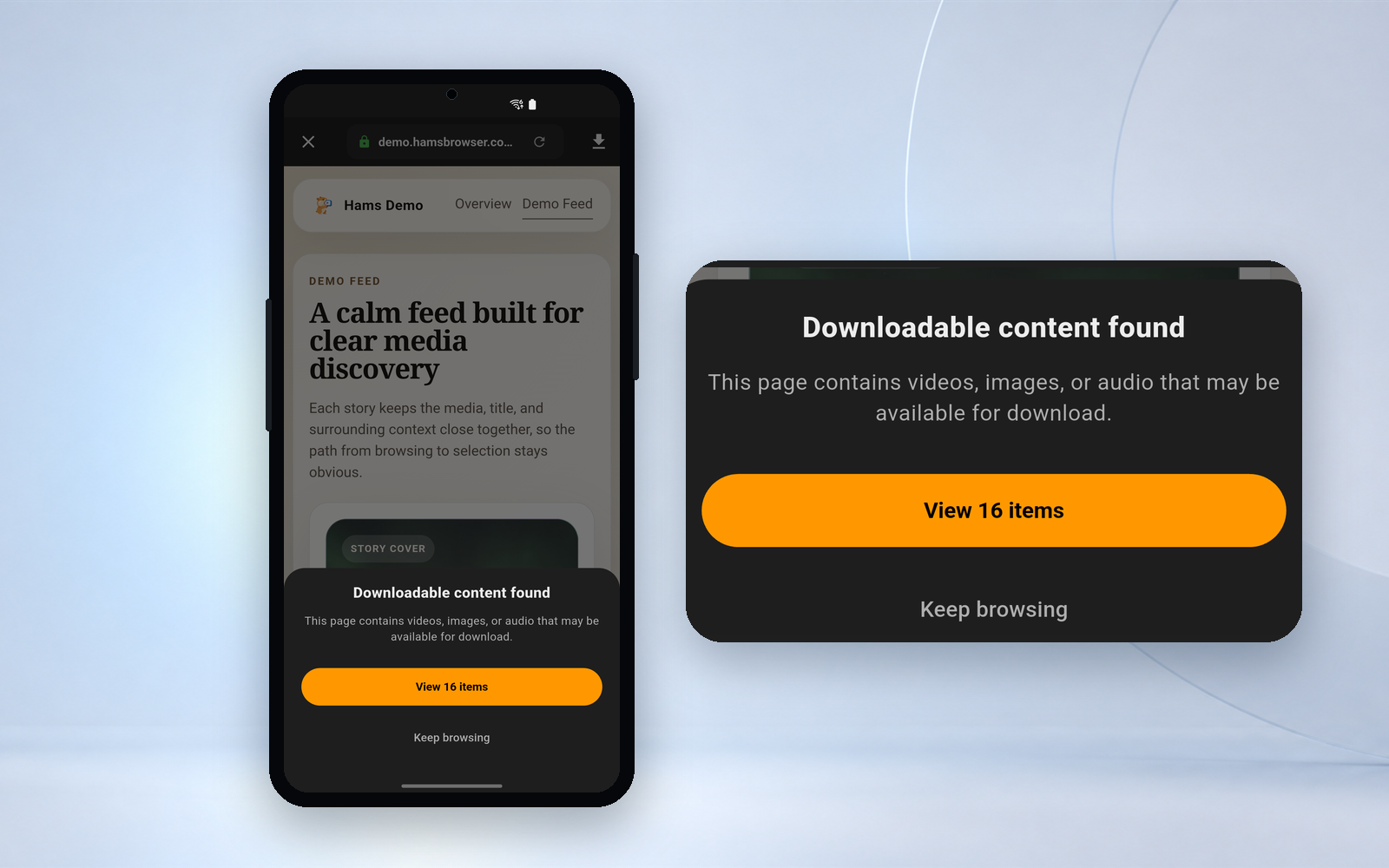
Open a web page in Hams that can be accessed and played normally.
-
02Start playing
Let the live or stream really start loading.
-
03waiting to be discovered
After the media loads, wait for Hams to try to identify compatible resources.
-
04Open download panel
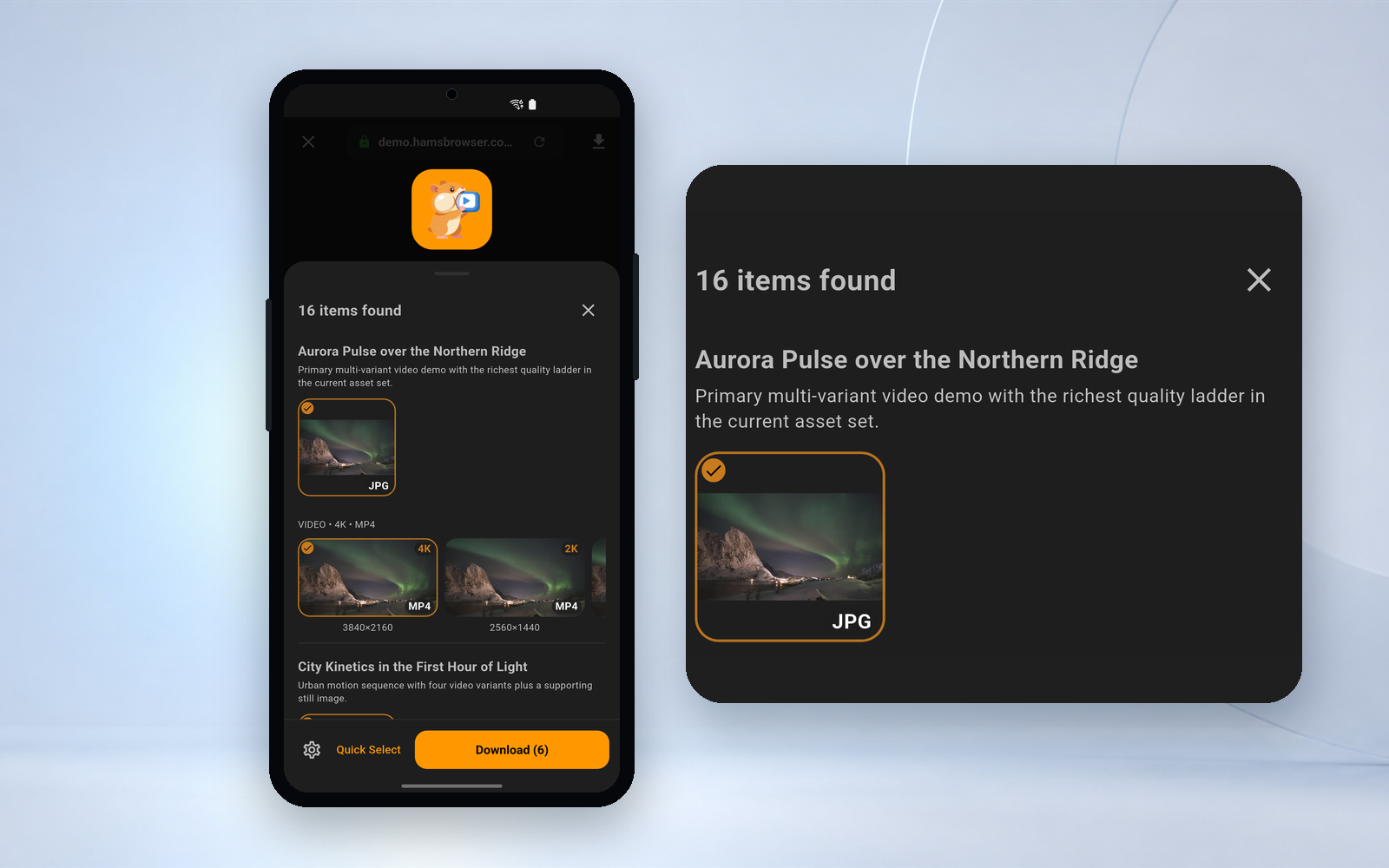
View the downloadable item details to confirm whether it corresponds to the current content.
-
05Join a task and check status
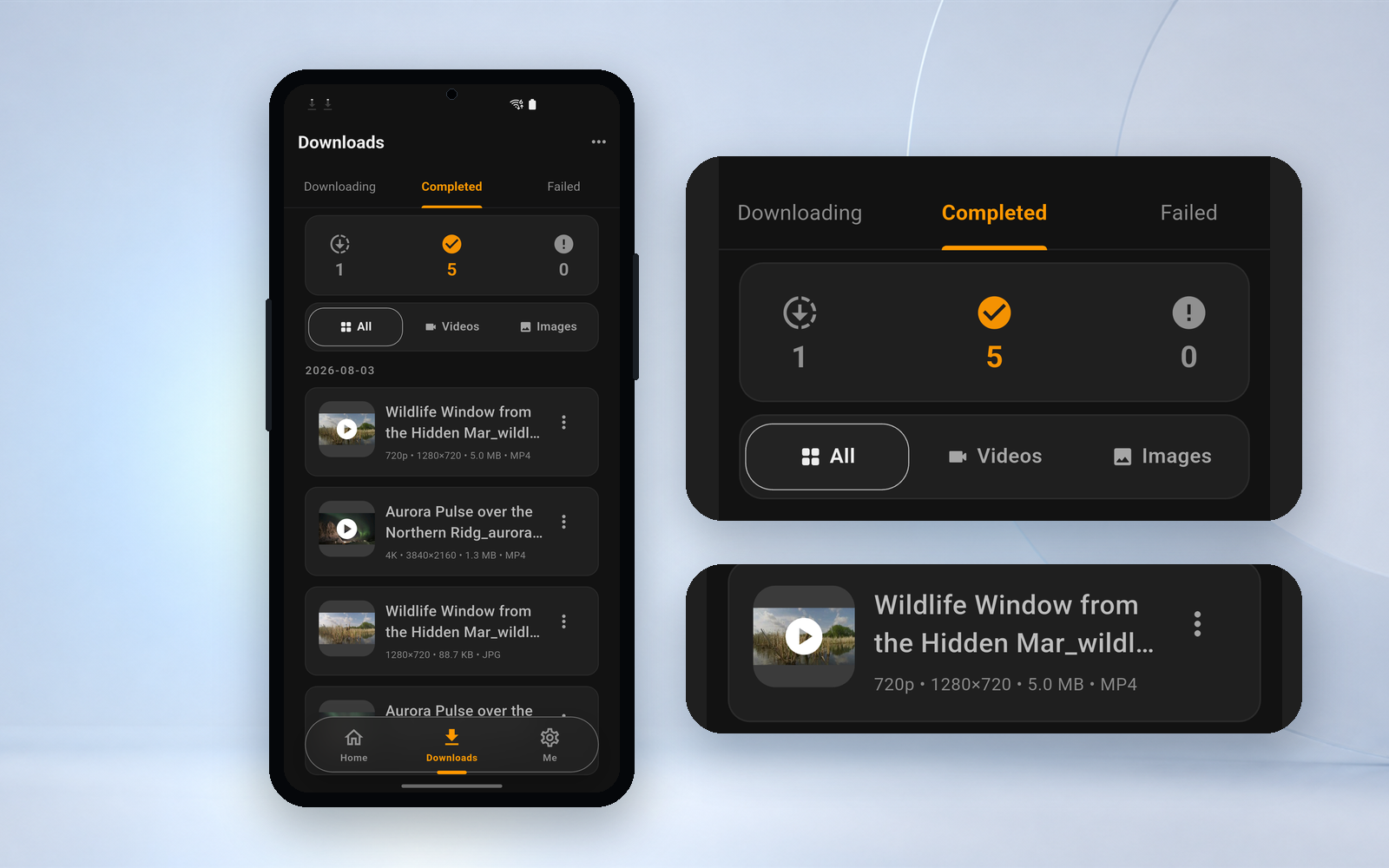
Select the resources that can be processed and add them to the Download Center, observe the actual status, and end the task manually after recording enough required content.


Complete graphic tutorial
-
01 · Open
First confirm that the web page itself can be accessed and played normally
Open the landing page in Hams. The page needs to have normal access permissions under the current network, region and account status.
- Open Hams
- Enter the URL or open the corresponding link
- Wait for the page to load
- Confirm that there are no login, region or permission errors on the page
Hams does not bypass page logins, subscriptions, regional restrictions or access controls.
-
02 · Play
Click play to let the video or image actually load
The live stream or streaming content page may first display the cover, countdown or player frame, and the real downloadable videos and images are usually loaded after the playback starts.
- Click to play
- The confirmation screen starts to change
- Confirm that the player is no longer loading
- Keep the page on for a while
Just because the page can display the player does not mean that the media has actually started loading.
-
03 · Discover
Once the press begins, give Hams a little discovery time
Live media may consist of segments that load continuously. Once the page starts playing, Hams will try to discover compatible resources based on the actual loaded network media.
- Keep media playing normally
- Wait for a short time to load
- Check if the download button is available
- Continue playing for a while if necessary
You should not judge that the current page must not be supported when the web page has just been opened and the media has not been played. The recognition effects in the website demo are for explanation only, and there are no scanning animations in the app.
-
04 · Confirm
After discovering the resource, first confirm whether it corresponds to the current media
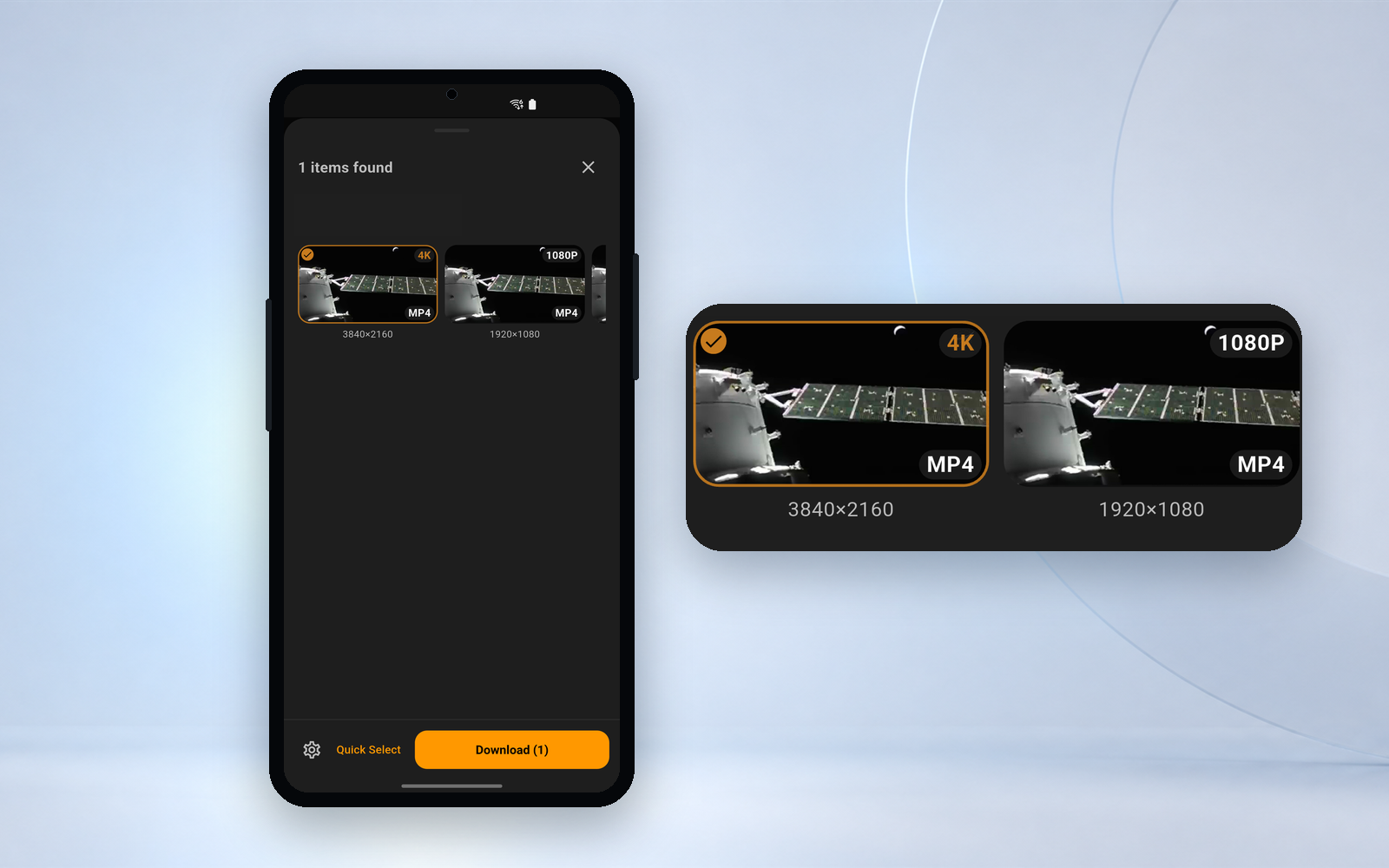
Click the download button to open the download panel, and use the available media information to determine whether the resource matches the current live stream or streaming content content. Only display the fields currently provided by the app: resource type, resolution, file format, thumbnail, media description, etc.
- Click to download the entrance
- Wait for the item list to be displayed
- View media types and available information
- Exclude obviously irrelevant covers, thumbnails or creatives
- Select resources that may correspond to the current content
It is found that other downloadable videos and images that may co-exist with the page in the list require the user to make their own judgment and selection.
-
05 · Download
After confirming the resources, join the Download Center
After selecting the media that can be processed, add it to the download task and go to the Download Center to check the actual status. The success prompt text is "The download task has been added."
- Confirm selected resources
- Click to download
- Wait for task creation
- Check whether the task has started
- Continue to wait or handle exceptions based on status
- After recording the required content, manually cancel the task in the Download Center
Live tasks will not stop on their own. Hams does not set an upper limit for the recording duration, nor does it have an upper limit for the file size, nor does it choose the "appropriate position" to end - the task will be recorded until the live stream ends, you manually cancel it, or until there is an interruption. Before starting, please confirm the storage space of your device and decide how long you plan to record.
Successfully creating a task does not mean that the final file has been completely saved. Actual results for live media also depend on website behavior, network conditions and media format.
-
06 · Status
Live stream tasks require more attention to the actual status
Open the Download Center to view current tasks. The task card uses icons and colors to indicate the current status. There is no corresponding Chinese status text in the app, nor does it display the estimated remaining time; when the task fails, the original error code is given instead of the Chinese description.
The live stream task will stay near completion for a long time during recording. This is caused by the progress estimation method and does not mean that the task is about to end - to end the recording, you need to cancel the task yourself in the Download Center.
HLS (m3u8) content is pulled, transferred and encapsulated by the app itself and is not protected by Android background downloads. When the app is terminated by the system or deleted from the background by you, the task will be interrupted and returned to the waiting state; when restarted, you can only re-record from the live stream screen at that time, and the previously recorded content will not be continued. Keep Hams running during long recording sessions.

Changes in live stream status may affect download results
-
Status 01 · Start playing · Live stream continues
The task will continue to be recorded until you stop it
While the live stream continues, the task will also continue. Hams has no upper limit on recording duration, no upper limit on file size, and it will not automatically end at a "suitable position". After recording the required content, please go to the Download Center to manually cancel the task.
-
Status 02 · Live stream has ended
The page may switch to playback or stop serving media
After the live stream ends, the website may provide full replay, partial replay, or no media. At this point you need to recheck the actual content of the page loaded.
-
Status 03 · Network outage
It will automatically reconnect if it fluctuates briefly, and fails if it is interrupted for a long time.
Network instability, switching Wi-Fi or mobile networks may affect page playback and download tasks. The recording link will automatically reconnect when it fluctuates briefly; if no data can be read for about 15 seconds, a timeout will be determined and the task will fail.
-
Status 04 · The page is refreshed or the app is closed
Closing the webpage will not affect the task, but closing the app will
After the task is created, the app itself pulls the stream. Refreshing or leaving the webpage will not terminate the recording that has been started; however, refreshing before the task is created will clear the downloadable items and require replaying. What really interrupts the recording is the app itself being terminated by the system or being crossed out - live streaming recordings are not protected from background downloads.
No resource found, check in this order
-
Confirm that the site is not excluded
YouTube, Google, Netflix, Disney+, iQiyi, Tencent Video and other official streaming platforms are actively excluded. Hams does not provide download support at all on these sites, and no download button will appear.View exclusion instructions.
-
Confirm that the media has been played
When only a cover, countdown, or loading animation is shown, the actual media may not have started loading yet.
-
Wait for a short time to load
Live media may take longer to process.
-
Check account and access permissions
Confirm that the current page is signed in and has normal permission to view the content. Hams does not detect media on sign-in or verification pages; sign in first, then return to the content page.
-
Check network status
Hams may also not be able to consistently discover or process media when the page itself doesn't play reliably.
-
Refresh and play again
When the page loads abnormally, you can refresh and restart playback, and then observe the download entry.
-
Accept technical limitations of the website
Special players, dynamic authorization and access control may cause media to not be discovered; DRM and encrypted playback are not supported, and even if such content appears in the panel, downloading will fail directly.
Hams does not bypass logins, paywalls, or other access controls; DRM and encrypted playback are not supported and will fail directly. Hams also does not guarantee support for all live streams, streaming sites and media formats.
Only save content you have permission to use
Please follow the rules of the content owner, site, and region. Do not use Hams to download unauthorized protected content or to bypass payment, access controls or technical protections. Recording a live stream in its entirety usually involves more rights issues than saving individual clips, so please be especially careful.
View terms of use and copyright noticeLearn more about Hams
Let the media play it first and see if Hams finds out
Download Hams to browse, discover and manage downloadable media on supported web pages.
Scan the QR code with your phone to go directly to Google Play