Browse, discover, select, download
Open the web page in Hams and browse as usual. After discovering downloadable content, preview and filter the resources before selecting the quality and saving to your phone.
Completing your first download usually only requires five steps.

Let’s look at the complete process first
-
Open web page
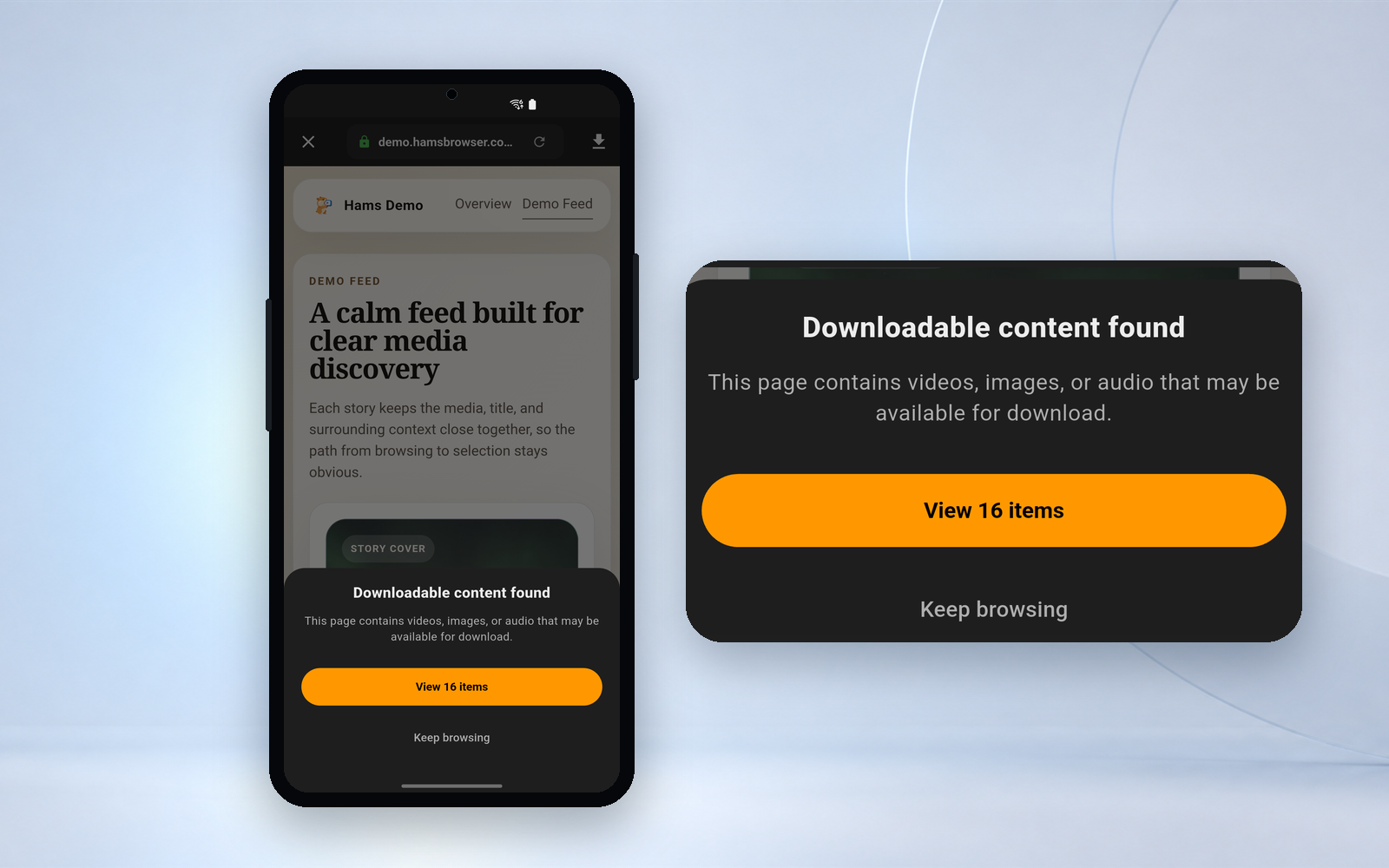
Enter the URL in the address bar or open an existing link.
-
Browse or play media
Let the page actually load the video and images.
-
Open download panel
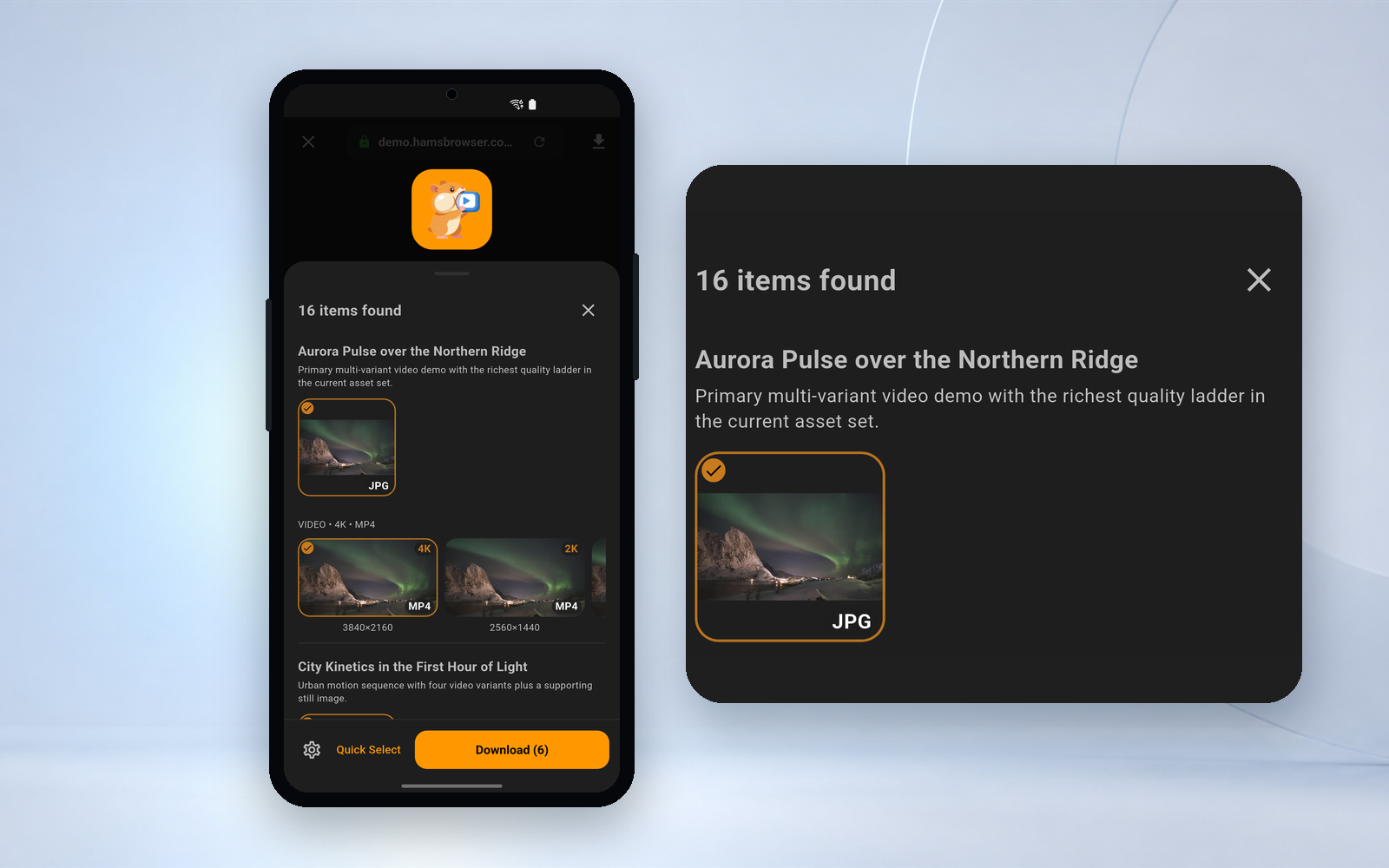
After discovering that the entrance is available, click View Resources.
-
Preview, filter and select quality
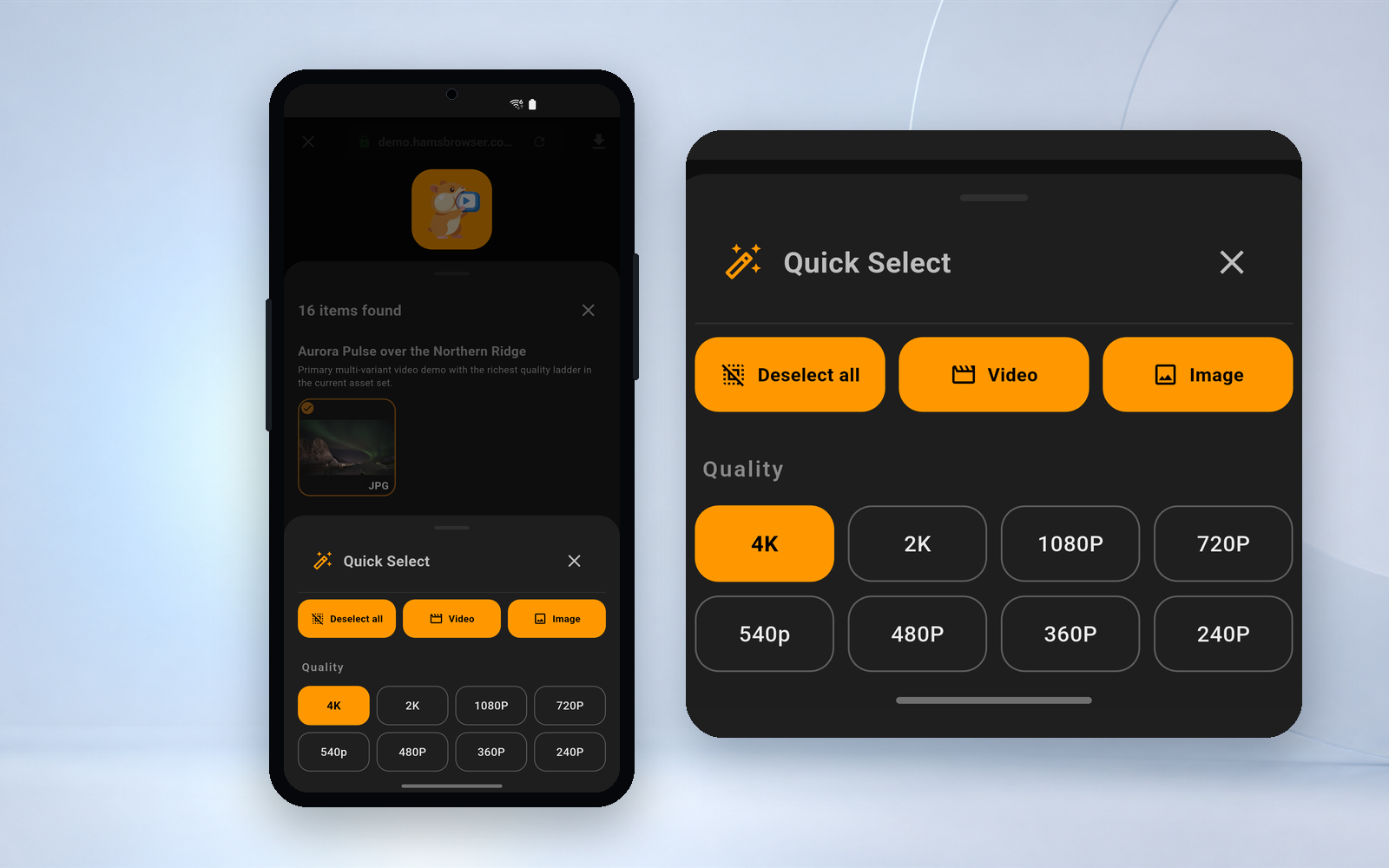
Determine resources and select available versions.
-
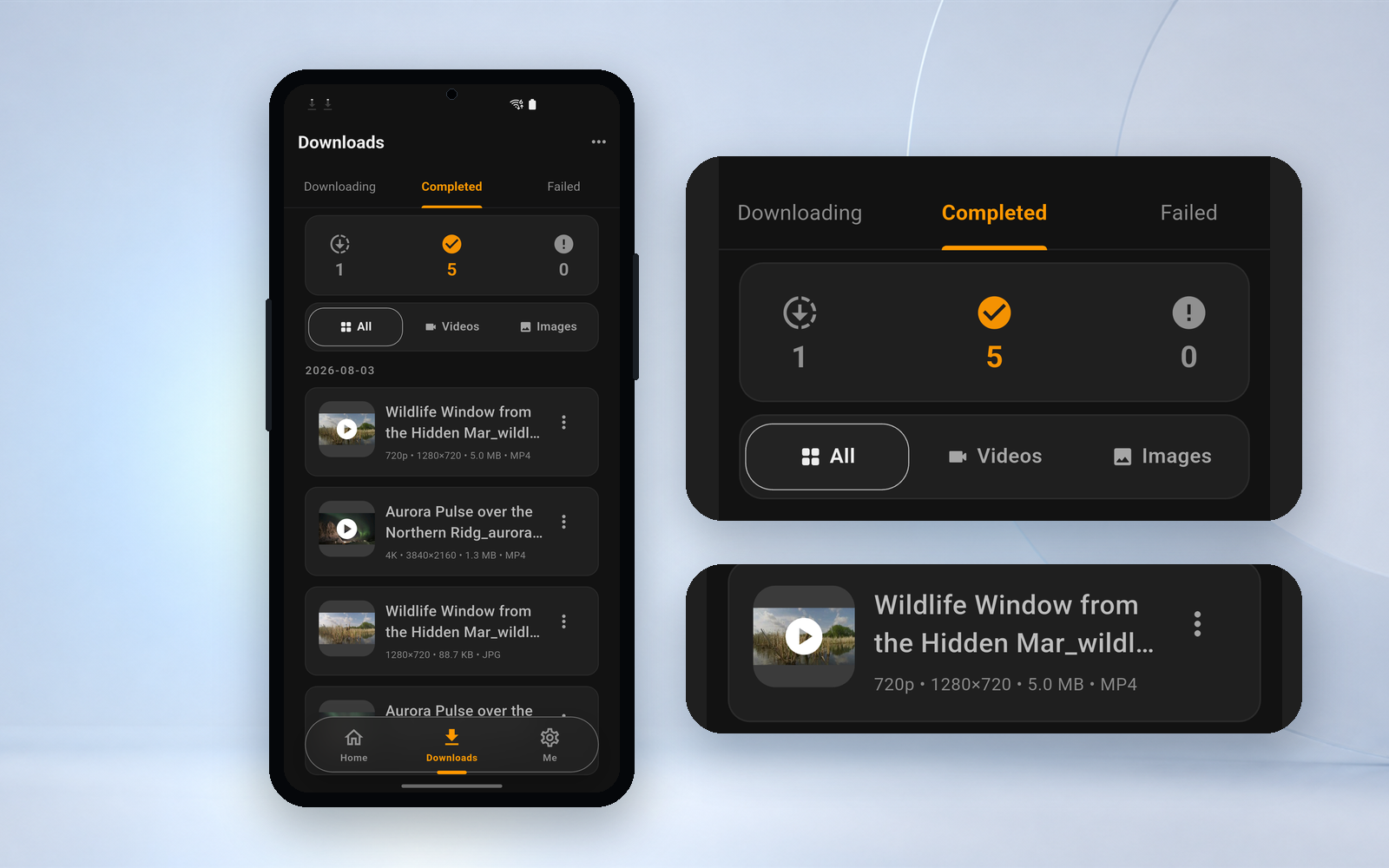
Download and manage files
Join the Download Center and continue browsing.


Five steps, step by step
-
01 · Open
Open the webpage you want to browse in Hams
Enter the URL on the homepage, or open the webpage through an existing link. After entering the page, browse normally like using a normal browser.
- Open Hams
- Click on the address bar
- Enter a URL or search for something
- Open landing page
The web page needs to actually be open within Hams before the app can try to discover the media the page is loading. Some sites are not supported and Hams will not find any content on these sites.
-
02 · Loading
Browse as normal and let the media load normally
Some videos or images will not actually load until the page is scrolled to the corresponding location or playback begins. Continue browsing the page, playing the content you want to save if necessary.
- Continue browsing
- Open video details
- Start playing media
- Wait for the page to finish loading
Hams attempts to discover content based on the resources that the web page actually loads. When the page is only opened but no media is loaded, the download button may not appear temporarily.
-
03 · Discover
After discovering the content, open the download panel
When Hams detects a potentially downloadable video or image on the current page, the download button will display an available status. Click this entry to view the currently downloadable items.
- Confirm that the media in the page has been loaded
- View the download entry in the browser toolbar
- Click to open the download panel
- Wait for the item list to be displayed
The download entry only means that Hams has found resources that may be processed, but it does not mean that every file in the list will necessarily meet your needs.
Learn about the download panel
-
04 · Choose
Confirm the content first, then select the version to save
The same web page may load covers, thumbnails, creatives, multiple videos, or different resolution versions at the same time. Determine resources through previews and available information, and then filter the files you really need.
- Preview thumbnail
- Filter videos or images
- View format and size
- Select available quality
- Check the required resources
Ordinary users and VIPs can download up to 1080p, and 2K and 4K original quality require SVIP; batch downloads on the list pages of X, Instagram, and Pinterest also require SVIP. The multi-selected resources in the panel are not divided into levels.
-
05 · Download
Click to download and continue browsing
After confirming the resources and quality, click Download to add the task to the Download Center. After the task starts, you can continue to browse the web, or go to the Download Center to check the status. Hams does not support resuming downloads from breakpoints. Resume or retry after a pause will cause the download to start again.
- View progress
- Pause task
- continue task
- Retry failed task
- Open completed file
Video files may consume more data. Allow mobile data downloads if needed, or try to perform tasks only on Wi-Fi. "Wi-Fi only download" only intercepts when creating a task and will not automatically pause during the download process.
Learn about background downloads

Take one minute to understand the complete operation
Hams Beginner's Guide: From opening a web page to completing a download. Demonstrates how to open a web page, let media load, view the download panel, preview and select quality, and manage files in the Download Center.

Video Chapter
- 00:00what hams can do
- 00:08Open web page
- 00:18Browse and play media
- 00:28Open download panel
- 00:38Preview and select quality
- 00:50Start downloading
- 00:58View completed files
Provide complete text steps and key interface instructions to help you complete the first download according to the process.
No content found yet, please check these conditions first
First confirm that the current website is within the supported range: YouTube, Google, Netflix, Disney+, iQiyi, Tencent Video and other sites are not supported. Hams does not provide download support on these websites, and there will be no results if you continue to check. In other cases, whether the resource is discovered depends on whether the web page has actually loaded the media, as well as the media formats and technical limitations used by the website.
Continue browsing or start playing
Some web pages will only load real resources after the media enters the visible area or starts playing.
Wait for the page to finish loading
On a slow network, media may take more time to appear.
Confirm whether you need to log in
Some content is only accessible after logging in. Please confirm that the current page has normal playback permissions.
Try reopening the page
When the page loads abnormally, you can refresh or re-enter the current web page.
Confirm site restrictions
DRM-protected content is not supported and attempted downloads will fail. Encrypted playback, special loading methods, website region restrictions or access control may also prevent content from being discovered or downloaded.
Hams does not bypass logins, nor does it bypass website access controls; DRM-protected content is not supported and will fail to download. Hams also does not guarantee support for all websites, pages and media formats.
Still can't solve
Please send the problem description, operation steps and relevant screenshots to the support email, and we will investigate and handle it as soon as possible.
Contact Hams SupportSaved, view at any time

Play offline
Open saved videos using the built-in player. You can continue watching when there is no network or you don’t want to consume data repeatedly.
Learn about offline playbackLocal file management
Find, rename and organize saved files in Download Center.
Learn about file managementPrivate Vault
Move downloaded files into a safe to reduce file and thumbnail exposure. The Private Vault is for VIPs and the Extreme Vault is for SVIP, and they are separate safes. The safe is exclusive to Android; the Private Vault does not prevent screenshots, and the Extreme Vault requires server authorization for each operation and is not available offline.
Learn about Private VaultsPrepare to complete your first download
Open the web page and browse as usual. Once you discover content, preview it, select it, and save it.
 Watch the operation demonstration again
Official Google Play badge
Watch the operation demonstration again
Official Google Play badgeNeed to use the original official source
Android 10 and above · Free to download · With in-app purchases
Scan the QR code with your phone to go directly to Google Play