
Select multiple items at once to reduce repetitive operations
When multiple videos or images appear on a web page, you can first preview and filter them in the download panel, then select multiple required resources and join the download task together.
SVIP enhanced capabilities

What requires SVIP is batch downloads of the list pages of X, Instagram, and Pinterest, and VIP is not enough. There are also Threads, Facebook, Reddit, TikTok (including Douyin), Kuaishou, Snapchat, Dailymotion, Xiaohongshu, Weibo, Bilibili and other platforms. Ordinary users can only unlock and download by watching ads on the content details page. For other sites, you can multi-select in the download panel and join tasks in batches. SVIP is not required.
Skip directly to the steps you need to know
- What situations are suitable for batch downloads?
- Open a web page that contains multiple resources
- Waiting for Hams to discover the media
- Filter videos or images
- Select multiple resources
- Check quality and file information
- Join the download task
- View batch task progress
Organized according to the batch download process, you can jump directly to the corresponding graphic and text steps below.
When repeated operations start to increase, batch downloads are truly valuable.
If there is only one file that needs to be saved in a web page, ordinary downloading is enough. Batch downloads is suitable for situations where there are multiple related videos or images on the same page, and you want to confirm the content first and then join the download tasks uniformly.
Select multiple videos at once
When multiple independent videos appear on the page, you can preview and filter them first, and then select the content that really needs to be saved.

Select the desired set of images
There is no need to repeat operations one by one. You can view and select multiple image resources in the download panel.

Filter first, then add tasks in batches
The same web page may load covers, thumbnails, and other assets at the same time. Batch downloads does not mean blindly downloading all resources. You should still make judgments and choices first.
Batch downloads are available for resources that Hams has discovered and can handle. Actual discovery results depend on web pages, media formats, login status, and site limitations.
Four steps to add multiple resources to the download task
-
Let multiple resources actually load
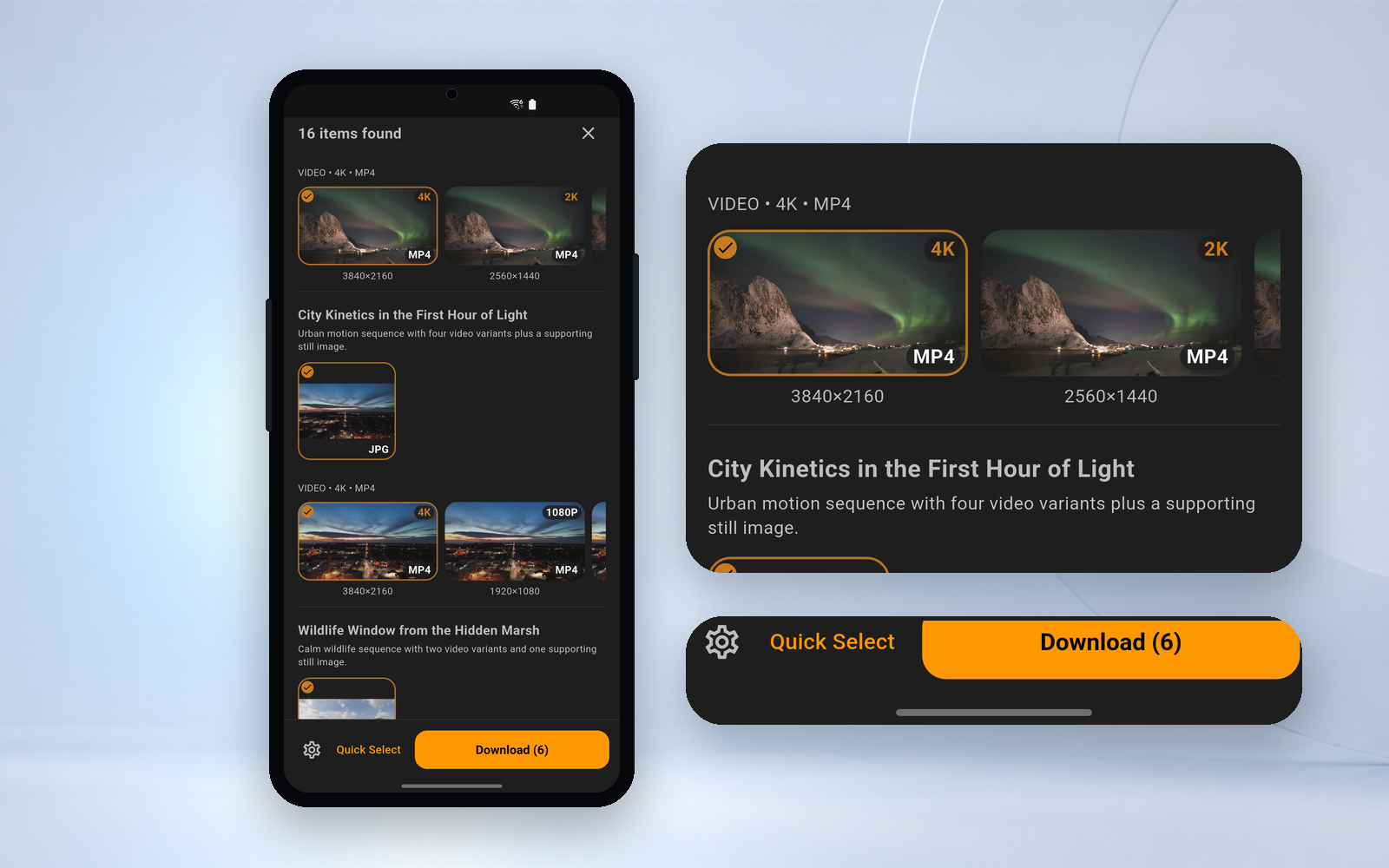
Open the target webpage and browse normally, scrolling or playing media if necessary.
-
Open the download panel and filter
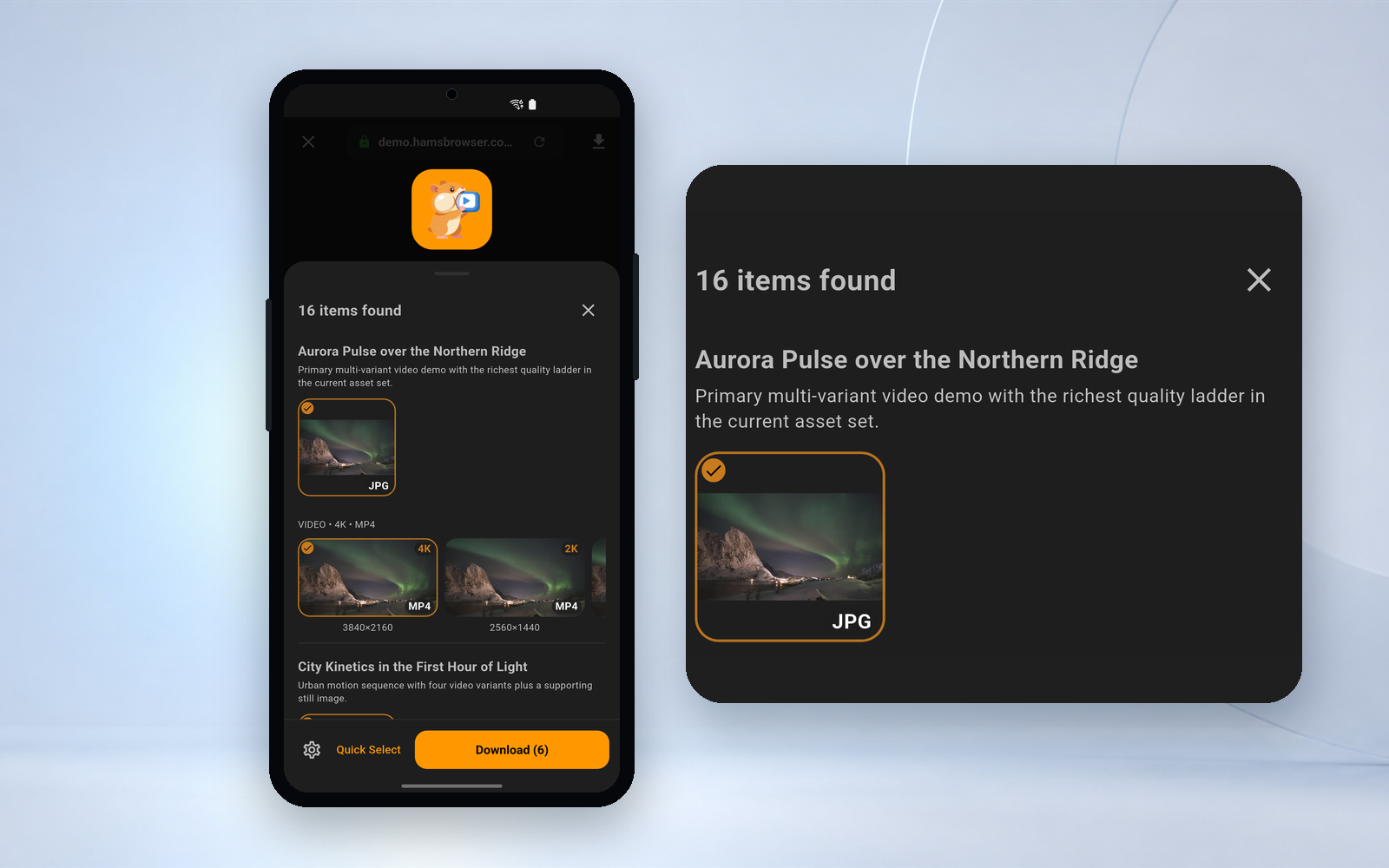
View currently downloadable items and filter by video or image.
-
Select multiple required content
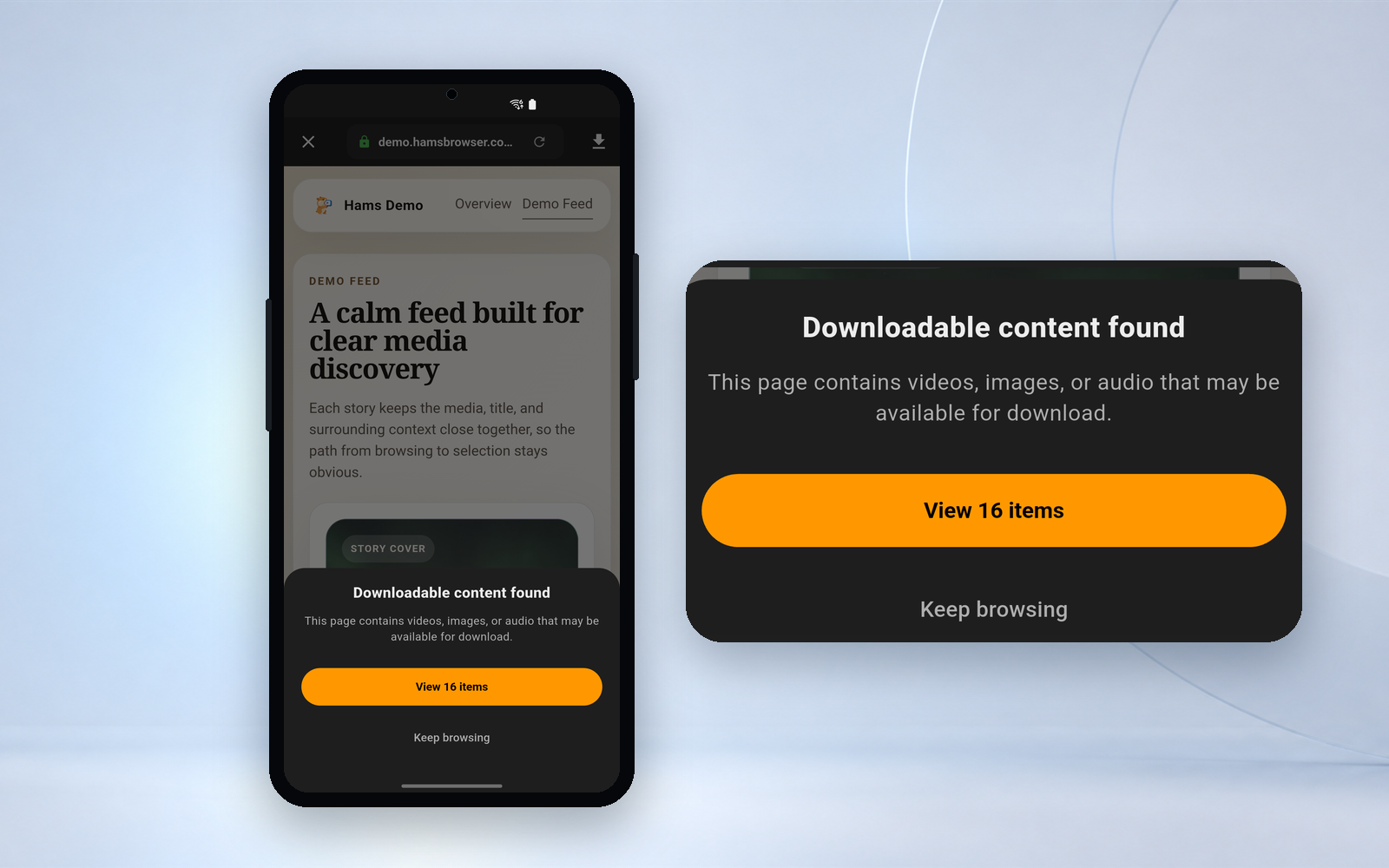
Confirm the resources through preview, format, quality and file information, and then make multiple selections.
-
Unify and join download tasks
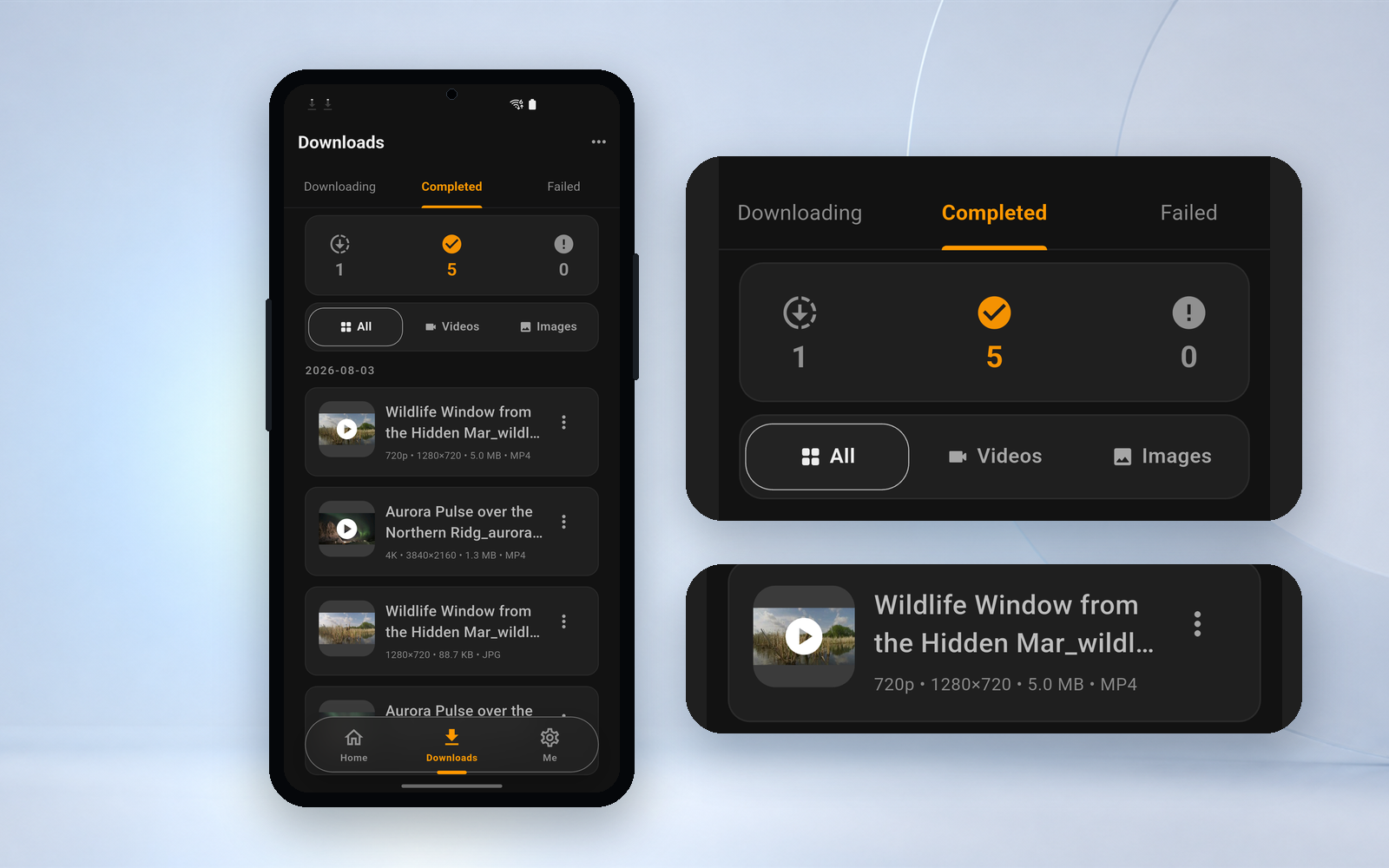
After confirming your choice, join the Download Center and check their status.

Complete graphic operation tutorial
First let the required resources appear on the page
Open the target webpage in Hams and browse the page content normally. Some videos or images will not be actually loaded by the web page until you scroll to the corresponding area, open details, or start playing.
- Continue browsing
- Open the corresponding content
- Start playing video if necessary
- Wait for the page to load
If the corresponding media has not yet been loaded on the web page, these resources may not appear in the download panel.

Focus on resources found on the current page
After Hams finds a potentially downloadable video or image, he clicks on the download button in his browser to open the download panel.
- Confirm that the download button has become available
- Click to open the download panel
- Wait for the item list to be displayed
- Check the number and types of resources discovered
The download panel displays the processable resources that have been discovered on the current page, but it does not mean that all content in the web page can be discovered. When there are many resources, the panel displays the first 10 groups first, and continuing to scroll down will load more in batches.
Narrow down your options first, then start choosing
When there are many resources, you can use the video and image buttons in the quick selection to narrow the scope and reduce the interference of thumbnails, covers and other irrelevant content. The download panel does not have an independent filter bar, and the filtering is performed by these two buttons.
- Just want video: Switch to video type to prioritize resolution, format and file size
- Just need images: switch to the image type and judge the content that really needs to be saved through the thumbnails
- Unable to judge a resource: Don't rush to select it, you can preview or view more available information first
Select what you need instead of downloading all
Select multiple assets you really need based on thumbnail, type, file size and quality information. When the selected quantity increases, the download operation area should simultaneously display the currently selected quantity.
- Preview content
- View file information
- Check quality
- Check resources
- Review the selected quantity
The upper limit of download quality for ordinary users and VIPs is 1080P, and SVIP is required for 2K and 4K. When using smart selection, if a video does not have a 1080P or lower level, the entire group will be skipped, and it will not automatically downgrade to another quality, nor will it choose a higher quality.
Confirm your choice and then join the Download Center
After reviewing the selected resources and available quality, click Download to add multiple resources to the download task.
- Check selected quantity
- Check file and quality
- Click to download in batches
- Wait for the task to enter the Download Center
- View the status of each task
Batch downloads on the list pages of X, Instagram, and Pinterest require SVIP; on other sites, ordinary users and VIPs can also multiple-select and join tasks in batches. The app will display the currently available benefits and upgrade prompts when needed.
Keep multiple tasks clear and controllable
After resources are added to the Download Center, tasks are managed according to downloading, completed and failed categories. They can be paused, resumed, canceled and retried one by one or in batches. Task cards use icons and colors to indicate status, and there is no corresponding Chinese status text label in the app.
Batch selection means that multiple resources can be added to the task at one time, but it does not mean that they will be downloaded at the same time. The number of simultaneous downloads defaults to 1, and the optional range is 1–6, but the actual number for ordinary users and VIPs is always 1, and only SVIP can truly increase it.
Hams does not support resuming interrupted downloads. If you continue after a pause or try again after a failure, you will download it again from 0 bytes, and the parts that have been transferred will not be retained. Failed tasks will be automatically retried, up to 2 times; they will need to be retried manually thereafter.
For batch downloads, network and storage space must also be considered
network
Wi-Fi priority
Multiple videos can consume a lot of data. When downloading larger files, it is recommended to use a stable Wi-Fi network.
mobile data
Before using mobile data, you should confirm the current data settings and package status to avoid unexpected data consumption.
Wi-Fi only download
This setting only intercepts tasks when they are added to the queue. Tasks that have already been started will not be automatically suspended due to switching to mobile data.
storage space
Check the space yourself before downloading
High-definition videos and multiple files can quickly occupy device storage space. Hams will not pre-check the available space on the device, you need to confirm it yourself.
Choose appropriate quality
If you don't need the highest quality, you can choose one of the more suitable versions available.
Avoid duplicate versions
When there are multiple quality levels of the same video, confirm whether you really need to save multiple versions at the same time.
Hams does not have a storage preview, nor does it provide estimates of expected footprint. When there is insufficient space, the task will fail directly, and the original error code will be displayed on the interface.
Batch download not working as expected
Why are only some resources found?
Some content may not be loaded yet. Continue browsing, opening details, or playing media before viewing the Downloads panel.
Why can't I select a resource?
The resource may be inaccessible, in an incompatible format, or subject to technical limitations of the website.
Why don't all tasks start at the same time?
Joining tasks in batches is not the same thing as simultaneous downloads. The number of simultaneous downloads defaults to 1, and the optional range is 1–6, but the actual number for ordinary users and VIPs is always 1. Only SVIP can really increase it, so in most cases tasks will be queued and executed one by one.
Why do some quality options not appear?
Hams can only display versions of web pages that are actually available and discoverable. In addition, the upper limit of quality for ordinary users and VIPs is 1080P, and 2K and 4K require SVIP; during smart selection, if a video does not have a 1080P or lower level, the entire group will be skipped.
Why do batch download prompts need to be upgraded?
Batch downloads on X, Instagram, and Pinterest list pages require SVIP, and VIP is not enough. There are also Threads, Facebook, Reddit, TikTok (including Douyin), Kuaishou, Snapchat, Dailymotion, Xiaohongshu, Weibo, Bilibili and other platforms. Ordinary users can only unlock and download by watching ads on the content details page. Additionally, SVIP is required when 2K or 4K quality is selected.
Hams does not guarantee that all resources in the web page will be discovered, that the website's login and access controls will not be bypassed, and that DRM-protected content will not be supported and downloads will fail. YouTube, Google, and official streaming platforms such as Netflix, Disney+, iQiyi, and Tencent Video have been actively excluded, and no download buttons will appear on these sites.
SVIP
Built for higher frequency download needs
SVIP includes VIP benefits. The one-sentence description of SVIP in the app is "High-speed downloads · Original quality · Batch downloads", and it also includes SVIP's exclusive Extreme Vault.
- Batch download of X, Instagram, Pinterest list pages
- The number of simultaneous downloads can be adjusted to 1–6; it is always 1 for ordinary users and VIPs
- 2K and 4K original quality; non-SVIP quality limit is 1080P
- Extreme Vault: Device Authentication · Automatically locks after leaving
The Extreme Vault and the VIP Private Vault are two independent safes that are not connected to each other; the safe is an exclusive feature of Android. VIPs are only exempt from regular app ads, and rewarded ads used to preview SVIP features may still appear.
Available resources, quality, and actual download performance depend on the page, device, network, and current functionality of the app. Do not display fixed prices on the official website.
Learn more about Hams
Related functions
Need to save multiple resources, select them once and manage them uniformly
Download Hams to see SVIP batch download capabilities within the app.
Android 10 and above · Free to download · With in-app purchases

Scan the QR code with your phone to go directly to Google Play